
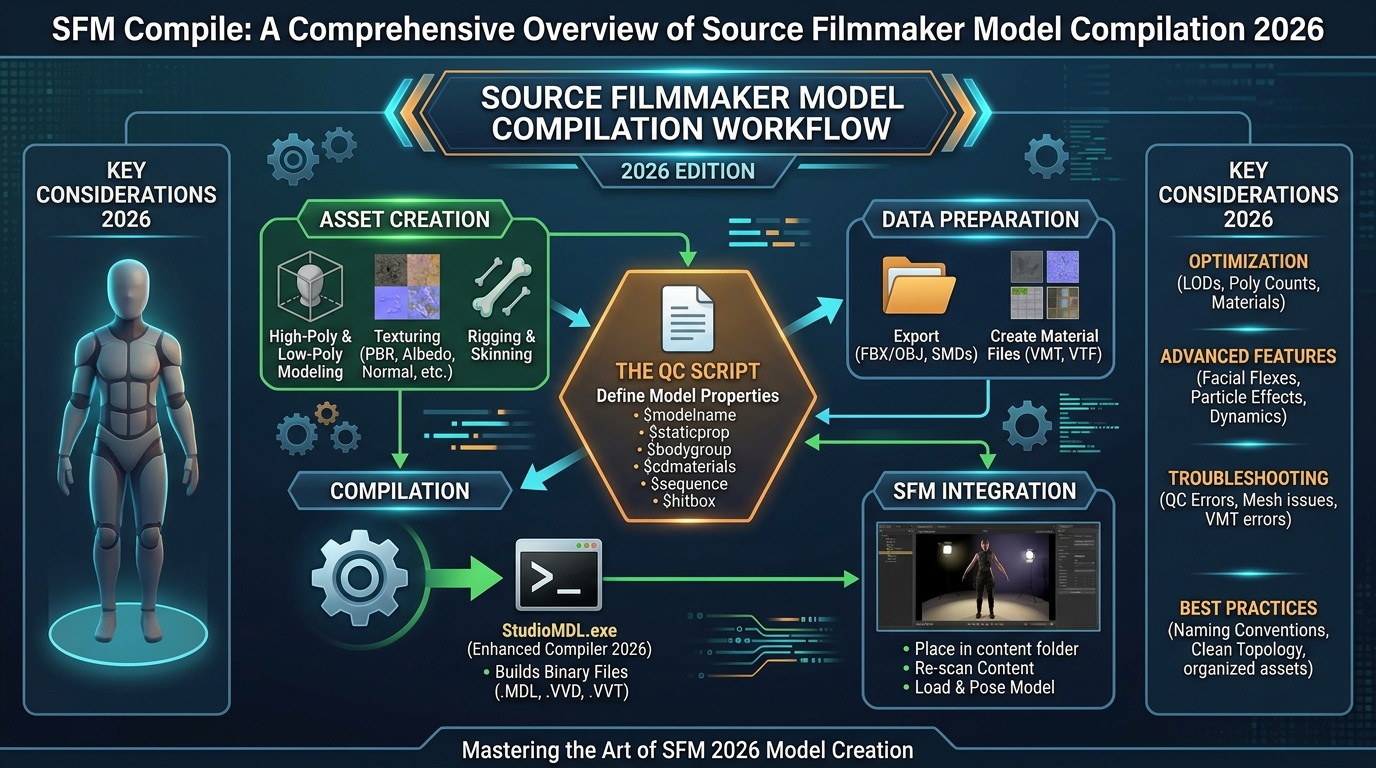
SFM Compile: A Comprehensive Overview of Source Filmmaker Model Compilation 2026
So you want to make custom characters or props in Source Filmmaker. That’s where SFM Compile comes in. SFM Compile turns your raw 3D model into a file that Source Filmmaker can actually read. Without it, your model just sits there, useless. This guide covers SFM Compile: A Comprehensive Overview of Source Filmmaker Model Compilation, and it breaks the whole process into simple steps.
Think of SFM Compile as the bridge between your creative work and the finished product. You build the model, then SFM Compile packages it up for the engine. This overview of Source Filmmaker Model Compilation walks you through the tools, the file types, and the common mistakes people make. By the end, SFM Compile won’t feel like a mystery anymore. It’ll just feel like another skill you’ve picked up.
Understanding SFM Compile and Its Role in Source Filmmaker
SFM Compile turns a raw 3D model into a format Source Filmmaker can use. Blender and Maya files don’t work directly in SFM. The compiler pulls out the data SFM needs, like geometry, bones, and materials. This step sits between building a model and actually using it in your scenes.
Without compiling, your model stays stuck as raw files. SFM can’t read them. Think of compiling as translation. It takes your creative work and speaks the Source engine’s language. Once compiled, the model loads, moves, and behaves the way you designed it.
How SFM Compile Works Inside the Source Engine Pipeline
Several file types work together during compiling. Each one plays a specific role, and skipping a step causes errors. The QC file acts like a blueprint. It tells the compiler where to find your models, textures, and animations.
Here’s a quick breakdown of the main files involved:
| File Type | Purpose |
| SMD | Stores geometry and animation data |
| DMX | Modern format for models and animations |
| QC | Instructions for the compiler |
| MDL | Final compiled model |
| VTX | Handles rendering data |
| VVD | Stores vertex information |
Essential Software and Tools Required for SFM Compile
You need a handful of tools before you start compiling. StudioMDL does the actual conversion work. Crowbar makes that process easier with a simple interface. You’ll also need 3D software and a text editor for writing scripts.
Each tool handles a different piece of the puzzle. Skipping one usually means more manual work later. Beginners often start with Crowbar since it hides the command-line steps. As you gain experience, you might switch to StudioMDL directly for more control.
StudioMDL Command Line Utility
StudioMDL is Valve’s official compiler for Source engine models. It reads your QC file and builds the finished model from it. This includes generating animations, collision data, and other technical details the engine requires.
Running StudioMDL means typing commands, which can feel intimidating at first. A basic command looks like studiomdl model.qc. It’s simple once you get used to it. Many experienced creators prefer this method because it gives them full control over the process.
Crowbar Compilation Tool
Crowbar wraps StudioMDL in a friendly interface. You don’t need to memorize commands. Instead, you click buttons and fill in fields. This makes compiling faster, especially for beginners still learning the ropes.
Beyond compiling, Crowbar also handles decompiling and testing models. It shows compiler errors clearly, which saves you time hunting for typos. Many SFM artists rely on Crowbar daily. It doesn’t replace StudioMDL, but it makes working with it far less painful.
3D Creation Software for SFM Compile
Before you compile anything, you need a model. Blender, Maya, and 3ds Max are the most common choices. Each one lets you build characters, props, and environments from scratch, with full control over shape and detail.
Preparation matters just as much as the software you pick. Clean geometry, proper textures, and correct scale all matter here. Bones and weight painting matter too, especially for characters. Skip these steps, and your model might compile fine but still look broken in SFM.
Text Editors and QC File Creation
QC files aren’t created through fancy software. You write them by hand in a plain text editor. Notepad++, Visual Studio Code, and Sublime Text are popular picks among Source engine creators.
The QC file controls how StudioMDL builds your model. Commands like $modelname and $body define key pieces of the process. Even one small typo can break the whole compile. That’s why careful, deliberate writing matters here more than speed.
Step-by-Step SFM Compile Process
Compiling isn’t one single action. It’s a chain of smaller steps that build on each other. Skip a step, and the whole thing falls apart. Understanding this flow helps you troubleshoot problems faster when they show up.
The process moves from raw model to finished asset in stages. You prepare, export, script, compile, then test. Each stage feeds into the next one. Master this rhythm, and SFM Compile stops feeling like a mysterious black box.
Preparing Your 3D Assets
Good compiling starts long before you touch a compiler. Your model needs clean topology, proper UVs, and finished textures. Characters also need a working skeleton. Skipping this groundwork causes headaches later, since the compiler can’t fix modeling mistakes.
Think of this stage as laying a foundation. A shaky foundation means cracks appear later, no matter how careful you are afterward. Spend extra time here. It pays off when your model loads correctly on the first try.
Exporting Model Files
Once your model looks ready, export it into SMD or DMX format. These formats speak Source engine’s language. During export, double-check bone names, animation frames, and material references, since small mistakes here cause big problems down the line.
A wrong export setting doesn’t always show up right away. Sometimes the model compiles fine but breaks inside SFM. That’s why careful exporting matters just as much as careful modeling. Take your time and check every setting twice.
Creating the QC File
The QC file ties everything together. It tells StudioMDL where your model, textures, and animations live. Without it, the compiler has nothing to work from. Think of it as a set of instructions written just for your project.
A basic QC file might only need a few lines. It lists the model name, body groups, material folders, and sequences. Simple as it looks, precision matters. One misplaced quote or wrong file path can stop the whole compile cold.
Running Compiler Operations
With your QC file ready, it’s time to compile. You can run StudioMDL directly through the command line, or use Crowbar for a simpler experience. Either way, the compiler reads your instructions and builds the final model.
Watch the output closely while it runs. Error messages usually point straight at the problem, whether that’s a missing file or a bad path. Don’t ignore these messages. They’re your best clue for fixing whatever’s gone wrong.
Testing the Finished Model
Compiling isn’t the finish line. Move your files into the right SFM folders, then load the model inside the program. Check that it appears, textures show up, and animations play the way you expected.
Testing often reveals problems you didn’t catch earlier. Maybe a bone moves oddly, or a texture looks stretched. That’s normal. Testing is part of an ongoing cycle, not a final checkbox. Expect to fix and retest more than once.
Learn more:What Is Team Aelftech com? A Simple Look at This Modern Digital Marketing Company 2026
Best Practices for Successful SFM Compile
Good habits make compiling smoother every time. Organized files, consistent naming, and optimized models all reduce errors. These practices won’t guarantee a perfect compile, but they cut down on frustrating, avoidable mistakes.
Building these habits early saves time later, especially on bigger projects. It’s much like tidying your workspace before starting a task. A little effort upfront means less scrambling when something doesn’t work as expected.
Keep Files Organized
A messy folder structure causes more problems than people expect. Keep your models, materials, scripts, and animations in clearly labeled folders. Source engine relies heavily on correct file paths, so a disorganized project invites errors.
Set up your folder structure before you even start modeling. It’s much easier than reorganizing halfway through a project. A clean structure also makes it simpler to find files later, especially when a project grows larger over time.
Use Consistent Naming
Confusing file names slow everyone down, including you. Avoid spaces, avoid duplicates, and skip vague names like “model2.” Instead, use clear labels like “robot_character_v1” or “robot_character_final” so you always know what you’re looking at.
Good naming habits pay off during troubleshooting. When something breaks, you’ll want to know exactly which version you’re working with. A little consistency now saves a lot of confusion and wasted time later in the project.
Optimize Models Before Compilation
Large, heavy models slow down Source Filmmaker. Before compiling, remove hidden geometry and reduce unnecessary polygons. Compressing textures and cleaning up unused materials also helps keep things running smoothly, especially in bigger, more detailed scenes.
Optimization isn’t about sacrificing quality. It’s about balance. A well-optimized model still looks great but performs better inside SFM. Think of it as decluttering: you keep what matters and cut everything that’s just extra weight.
Common SFM Compile Errors and Solutions
Compiling rarely goes perfectly on the first try, even for experienced creators. Most errors trace back to a handful of common causes. Learning to recognize these patterns saves you time and frustration down the road.
| Error | Common Cause | Solution |
| Missing textures | Wrong material paths | Check VMT and VTF locations |
| Model invisible | Broken compile or materials | Verify QC settings |
| StudioMDL errors | Wrong file paths | Correct QC references |
| Broken animations | Export problems | Check skeleton setup |
| Compilation crashes | Too many polygons | Optimize the model |
Advanced SFM Compile Techniques
Once you’ve mastered the basics, you can push your models further. Advanced techniques let you add richer animations, realistic physics, and flexible customization options. These skills separate casual hobbyists from serious SFM creators.
None of these techniques require starting over. They build directly on what you already know. You’re just adding new layers of detail and control on top of a solid, working foundation you’ve already built through practice.
Custom Animation Compilation
Animations bring your models to life inside SFM. The $sequence command in your QC file controls how animations get built into the model. You can add walking cycles, facial expressions, and other custom movements this way.
Getting animations right takes patience. Small mistakes in your skeleton or export settings can cause jittery or broken movement. Test animations early and often. It’s much easier to fix small problems before they pile up into bigger ones.
Creating Custom Physics Models
Physics models let objects interact naturally inside your scenes. A collision model controls how something moves, reacts to force, and registers hits. Without proper physics data, objects might clip through surfaces or float unnaturally in place.
Setting up physics takes some trial and error. You’ll adjust collision shapes until objects behave the way you expect. It’s worth the effort though, since realistic physics adds a lot of believability to any animated scene.
Using Multiple Skins and Body Groups
Skins and body groups add flexibility to your models. They let you swap outfits, change colors, or add removable accessories without building separate models for each variation. This saves time and keeps your project organized.
Setting these up takes some planning during the modeling stage. Once built correctly though, they give you a lot of creative freedom. One model can suddenly serve many different purposes across different scenes and projects.
Beginner Workflow: Where to Start With SFM Compile
Starting out, don’t jump straight into complex characters. Begin small, and build your skills gradually. A simple, structured learning path helps you understand the fundamentals before tackling anything more ambitious or technically demanding.
Patience matters more than speed early on. Rushing through the basics often leads to confusion later. Take your time with each step, and the more complicated techniques will make a lot more sense once you get there.
Begin With a Low-Polygon Model
Start small. Simple props or basic objects make great first projects. They teach you the fundamentals of compiling without overwhelming you with complicated geometry, animations, or physics all at once right from the start.
Once you’re comfortable with a simple prop, move on to something slightly more complex. This gradual approach builds confidence. By the time you tackle a full character, the process will already feel familiar and manageable.
Install and Organize Tools
Before diving in, get your tools set up properly. Install Source Filmmaker, Crowbar, StudioMDL, and any export plugins you’ll need. Take time to organize everything clearly, right from the very beginning of your project.
A little setup work now saves headaches later. When your tools are organized, you’ll spend less time hunting for files and more time actually creating. This small investment pays off throughout your entire SFM journey.
Create Your First QC File
Don’t skip straight to automation. Writing your first QC file by hand teaches you how the whole system fits together. It’s tempting to rely on tools like Crowbar, but understanding the basics first really helps.
Once you understand QC structure, troubleshooting becomes much easier. You’ll recognize errors faster and know exactly what to fix. This foundational knowledge sticks with you no matter how advanced your projects become later on.
Compile, Test, and Repeat
Improvement comes through repetition, not theory alone. Create a model, export it, write your QC file, compile, then test it inside SFM. Fix whatever’s broken, then repeat the whole process again.
Each cycle teaches you something new. Mistakes aren’t setbacks, they’re part of the learning process. The more you repeat this cycle, the faster and more confident you’ll become with every new project you tackle.
Study Existing Models as References
Decompiling existing Source models can teach you a lot. You’ll see how experienced creators organize folders, structure QC files, and set up materials. Just remember to respect the original creators’ work while learning from it.
Use these references as learning tools, not shortcuts to copy directly. Pay attention to patterns you notice repeatedly. Over time, you’ll start recognizing what separates a clean, well-organized project from a messy, error-prone one.
SFM Compile Compared With Modern Game Engine Workflows
Source engine workflows differ quite a bit from modern game engines. SFM Compile relies on manual scripting and dedicated compilers, while engines like Unity and Unreal often handle much of this automatically through built-in importers.
| Feature | SFM Compile | Modern Engine Workflow |
| Main Format | MDL | FBX/glTF |
| Compiler | StudioMDL | Built-in importer |
| Script Files | QC required | Often optional |
| Target | Source Engine | Unity/Unreal |
Source engine workflows demand more manual setup upfront, but they also reward you with detailed, hands-on control over every part of the process.
FAQ’S
What does SFM Compile mean
SFM Compile means turning your raw 3D model into a Source engine format. It converts geometry, textures, and animations so Source Filmmaker can actually load and use them.
Do you need programming skills for SFM Compile
No, you don’t need programming skills at all. Basic file organization and understanding simple QC commands are enough for most beginner projects starting out today.
Is Crowbar required for SFM Compile
Crowbar isn’t required, but it makes things easier. It simplifies compiling and decompiling through a friendly interface, saving you from memorizing complicated command-line instructions every single time.
Can Blender models work with Source Filmmaker
Yes, absolutely. Blender models export into Source-compatible formats like SMD or DMX, then compile through StudioMDL, so they work perfectly fine inside Source Filmmaker.
Why are textures missing after compiling a model
Usually it’s incorrect material paths. Your VMT and VTF files might sit in the wrong folder, so double-check those locations before assuming something else broke.
Conclusion
SFM Compile turns your creative ideas into real, working models. This overview of SFM Compile covered every major step, from preparing assets to running the compiler. SFM Compile isn’t as scary as it first looks. Once you understand the basics, SFM Compile becomes just another part of your workflow.
Keep practicing, and SFM Compile will feel natural over time. Start small, then build up your skills with each new project. SFM Compile rewards patience and careful preparation. Stick with it, test often, and soon SFM Compile won’t feel like a challenge anymore. It’ll just feel like second nature.